
Integration
This document will guide you through the process of connecting devices, making a payment, and canceling an order using a BlueTap device connected to your POS system.
Workflow
The following figure describes the integration steps for connecting the devices, making a payment, and canceling an order.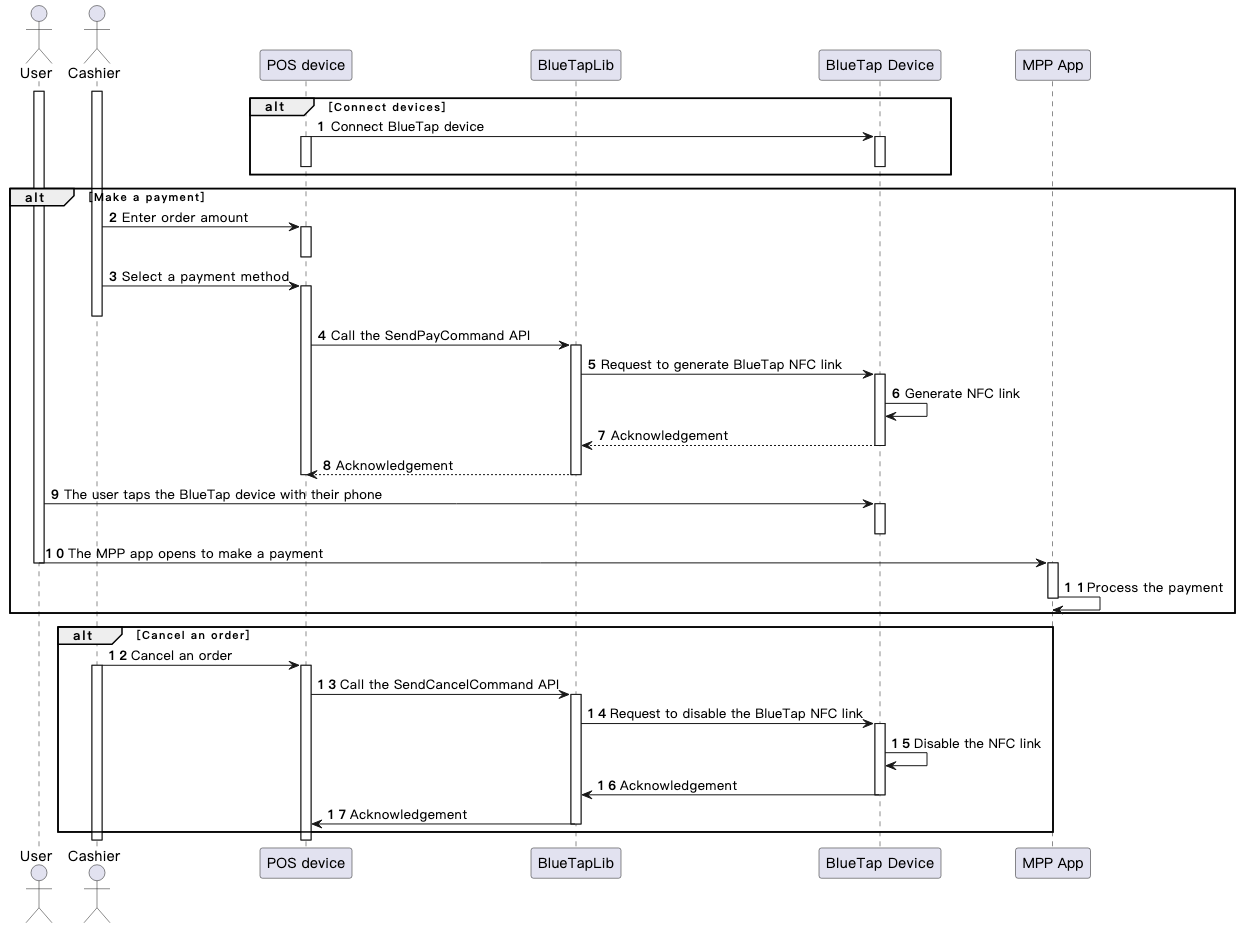
The interaction between the POS device and the BlueTap device consists of the following steps:
- Connect the devices: Connect the POS device to the BlueTap device with a USB cable (Step 1).
- Make a payment:
- The cashier enters the order amount and selects the payment method on the POS device. This triggers the POS device to call the SendPayCommand API to request that the BlueTap device generate an NFC link. (Steps 2–5)
- The BlueTap device generates the NFC link and informs the cashier that the NFC link is ready. (Steps 6-8)
- The user taps the BlueTap device with their mobile device to open the wallet and complete the payment. (Steps 9–11)
- Cancel a payment:
- The cashier cancels an order on the POS device, triggering the POS device to call the SendCancelCommand API to disable the BlueTap NFC link. (Steps 12-14)
- The BlueTap device disables the NFC link and returns the processing result to the POS device. (Steps 15-17)
Section 1: Connect the BlueTap device to the POS device
Connect the BlueTap device to the POS device using a USB cable.
Confirm both devices are powered on and functioning before starting any transaction.
Section 2: Make a payment
The cashier enters the order amount on the POS and selects a payment method.
Then the POS device calls the SendPayCommand API to request the BlueTap device to generate the BlueTap NFC link.
After the NFC link is generated, the cashier informs the user to pay.
The user taps the BlueTap device with their phone and opens the wallet app to complete the payment.
Processing logic
When calling the SendPayCommand API, take the following into consideration:
- Configure the request parameters properly:
- PaymentMethod: The wallet selected by the cashier on the POS device.
- Amount: The order amount that the cashier collects.
- OrderId: The unique ID that is assigned by the POS device to identify an order.
- ExpiryTime: The order expiration time.
- Handle the response properly:
- result: The result code that indicates the result of the command sending.
Sample
C#
The following sample shows how to use the SendPayCommand API in C#.
using System;
using System.Collections.Generic;
using System.Diagnostics;
using System.Windows.Forms;
using BluetapLib;

namespace BluetapTest
{
    static class Program
    {
        private static void Main(string[] args)
        {
            TinyCommand tinyCommand = new TinyCommand();

            /* Send TRUEMONEY PayCommand*/
            PayCommand payCommand = new PayCommand { PaymentMethod = PaymentMethod.TRUEMONEY.ToString() };
            ResultCode result = tinyCommand.SendPayCommand(payCommand);
            Debug.Assert(result == ResultCode.SUCCESS);

            /* Send 7-11 PayCommand*/
            payCommand = new PayCommand { PaymentMethod = PaymentMethod.SEVEN_11.ToString() };
            result = tinyCommand.SendPayCommand(payCommand);

            /* Send Alipay+ wallet PayCommand*/
            payCommand = new PayCommand { PaymentMethod = PaymentMethod.ALIPAY_PLUS.ToString() };
            result = tinyCommand.SendPayCommand(payCommand);

            /* Test invalid PayCommand*/
            payCommand = new PayCommand { PaymentMethod = "Test" };
            result = tinyCommand.SendPayCommand(payCommand);
            Debug.Assert(result == ResultCode.PARAM_ILLEGAL);
        }
    }
}
Python
The following sample shows how to use the SendPayCommand API in Python.
import hid
import bluetaplib

tinyCommand = bluetaplib.TinyCommand()
payCommand = bluetaplib.PayCommand(bluetaplib.PaymentMethod.TRUEMONEY)
tinyCommand.SendPayCommand(payCommand)

payCommand = bluetaplib.PayCommand(bluetaplib.PaymentMethod.SEVEN_11)
tinyCommand.SendPayCommand(payCommand)
For more information about how to use the SendPayCommand API, see the SendPayCommand API.
Section 3: Cancel an order
The cashier can initiate the cancel action on the POS device, which then calls the SendCancelCommand API to request the BlueTap device to disable the NFC link. The BlueTap device disables the generated NFC link and cancels the pending payment.
Processing logic
When calling the SendCancelCommand API, take the following into consideration:
- Configure the request parameter properly:
- OrderId: The unique ID that is assigned by the POS device to identify an order.
- Handle the response properly:
- result: The result code that indicates the result of the command sending.
Sample
C#
The following sample shows how to use the SendCancelCommand API in C#.
using System;
using System.Collections.Generic;
using System.Diagnostics;
using System.Windows.Forms;
using BluetapLib;

namespace BluetapTest
{
    static class Program
    {
        private static void Main(string[] args)
        {
            TinyCommand tinyCommand = new TinyCommand();
            /* Send CancelCommand*/
            CancelCommand cancelCommand = new CancelCommand();
            result = tinyCommand.SendCancelCommand(cancelCommand);
        }
    }
}
Python
The following sample shows how to use the SendCancelCommand API in Python.
import hid
import bluetaplib

tinyCommand = bluetaplib.TinyCommand()
cancelCommand = bluetaplib.CancelCommand()
tinyCommand.SendCancelCommand(cancelCommand)
For more information about how to use the SendCancelCommand API, see the SendCancelCommand API.