
Product introduction
Alipay+ NFC is a secure, convenient payment solution that allows consumers to pay by simply tapping their mobile device on a Mastercard POS device. It supports both local and cross-border NFC mobile payments, offering a swift, seamless, and easy payment process.
Basic concepts
Term (Abbreviation) | Definition |
Acquiring Service Provider (ACQP) | An Acquiring Partner participating in Alipay+ Core or other acquirer cooperating with a member of Ant Group to enable payments. |
Alipay+ | Alipay+ solution is a collaborative effort along with all partners to provide more open, digitalized, and inclusive financial services to worldwide consumers and merchants. |
Mobile Payment Provider (MPP) | A Mobile Payment Partner participating in Alipay+ Core or other consumer- or issuer-facing payment service provider cooperating with a member of Ant Group to enable payments. |
Mastercard (MC) | A multinational payment card services corporation. It offers a range of payment transaction processing and other related-payment services (such as travel-related payments and bookings). Throughout the world, its principal business is to process payments between the banks of merchants and the card-issuing banks or credit unions of the purchasers who use the Mastercard-brand debit, credit and prepaid cards to make purchases. |
Benefits
Alipay+ NFC offers the following benefits:
- Effortless tap-to-pay: A smooth and effortless payment experience where users can simply tap on merchants' terminals for payment completion.
- Broad merchant access: Direct access to millions of NFC merchants through the MPP app, enabling users to pay anywhere.
- Integrated payment functions: Combination of Alipay+ NFC payment and QR code payment functions, creating a full solution that strengthens the wallet and Alipay+'s leading position in the mobile payment space.
User experience
The following figures illustrate the user experience of activating the Alipay+ NFC service and making a payment by tapping.
Activate the Alipay+ NFC service
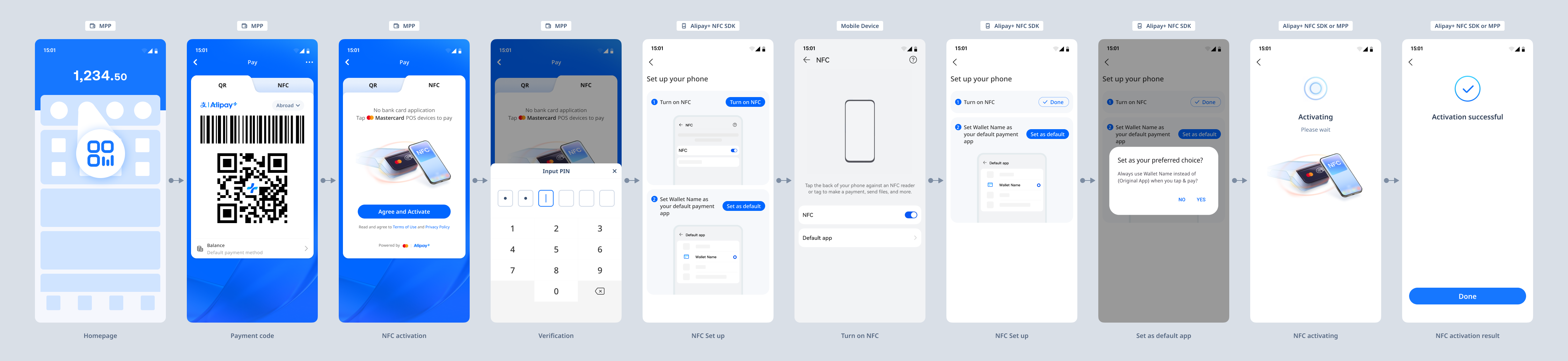
Figure 1. User experience of activating Alipay+ NFC
The user experience of activating the Alipay+ NFC service consists of the following steps:
- The consumer logs in to the MPP app, opens the payment page, and switches to the NFC tab.
- The consumer agrees to the terms and conditions of the NFC service and clicks Agree and Activate.
- The consumer completes the identification verification.
- The consumer follows instructions to turn on NFC and set the MPP app as the default payment app on the NFC configuration page.
- The Alipay+ NFC activation page displays to inform the consumer that the activation is in progress.
- After the activation is finished, the MPP app displays an activation result page to the consumer.
Make a payment
The following figures illustrate the user experience of making a normal tapping payment and a transportation transaction.
Tap to pay
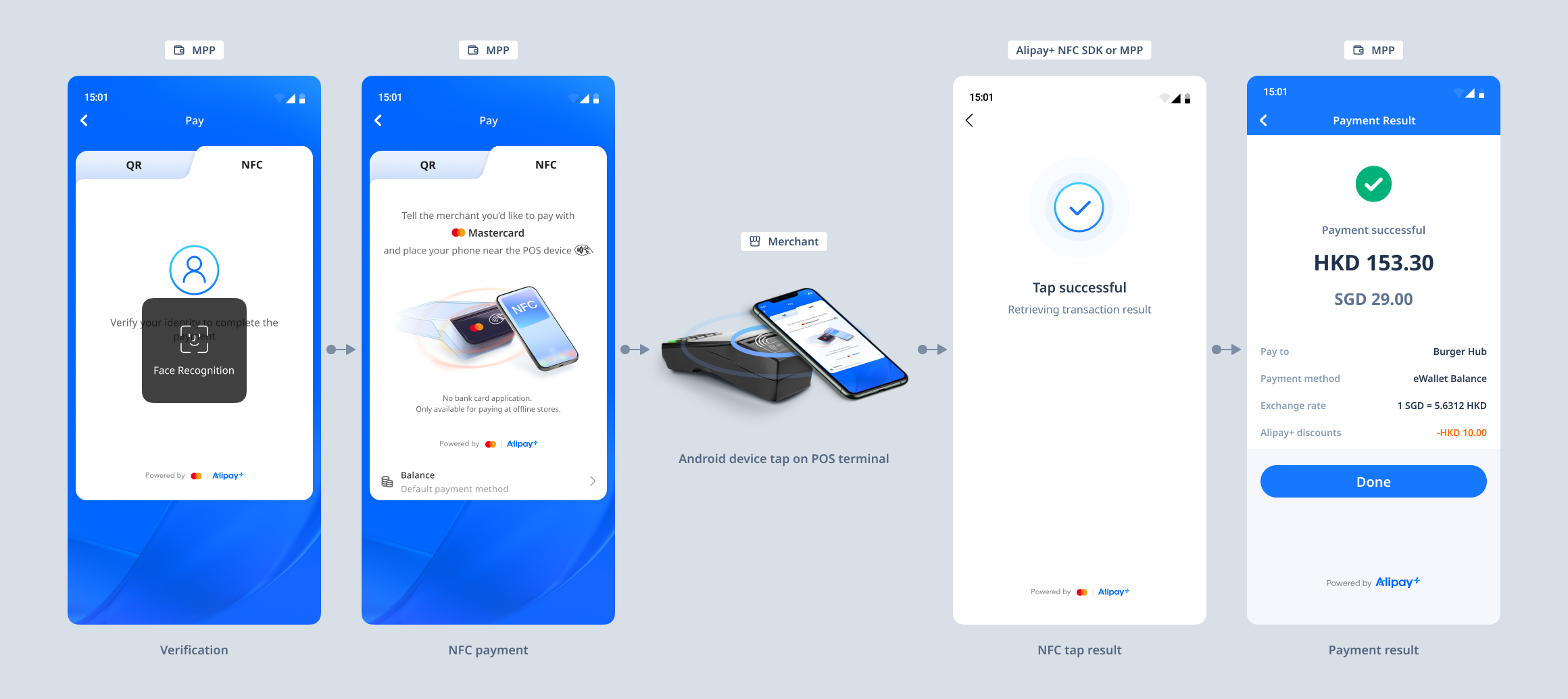
Figure 2. Tap-to-pay user experience
The user experience of making a payment consists of the following steps:
- The consumer logs in to the MPP app and switches to the NFC tab to complete the identification verification.
- The MPP app displays the NFC payment page and guides the consumer to use their phone to tap the POS device to make a payment.
- The consumer taps their phone on the POS device.
- The MPP app displays the payment result page, and then displays the detailed result to the consumer.
Take transportation
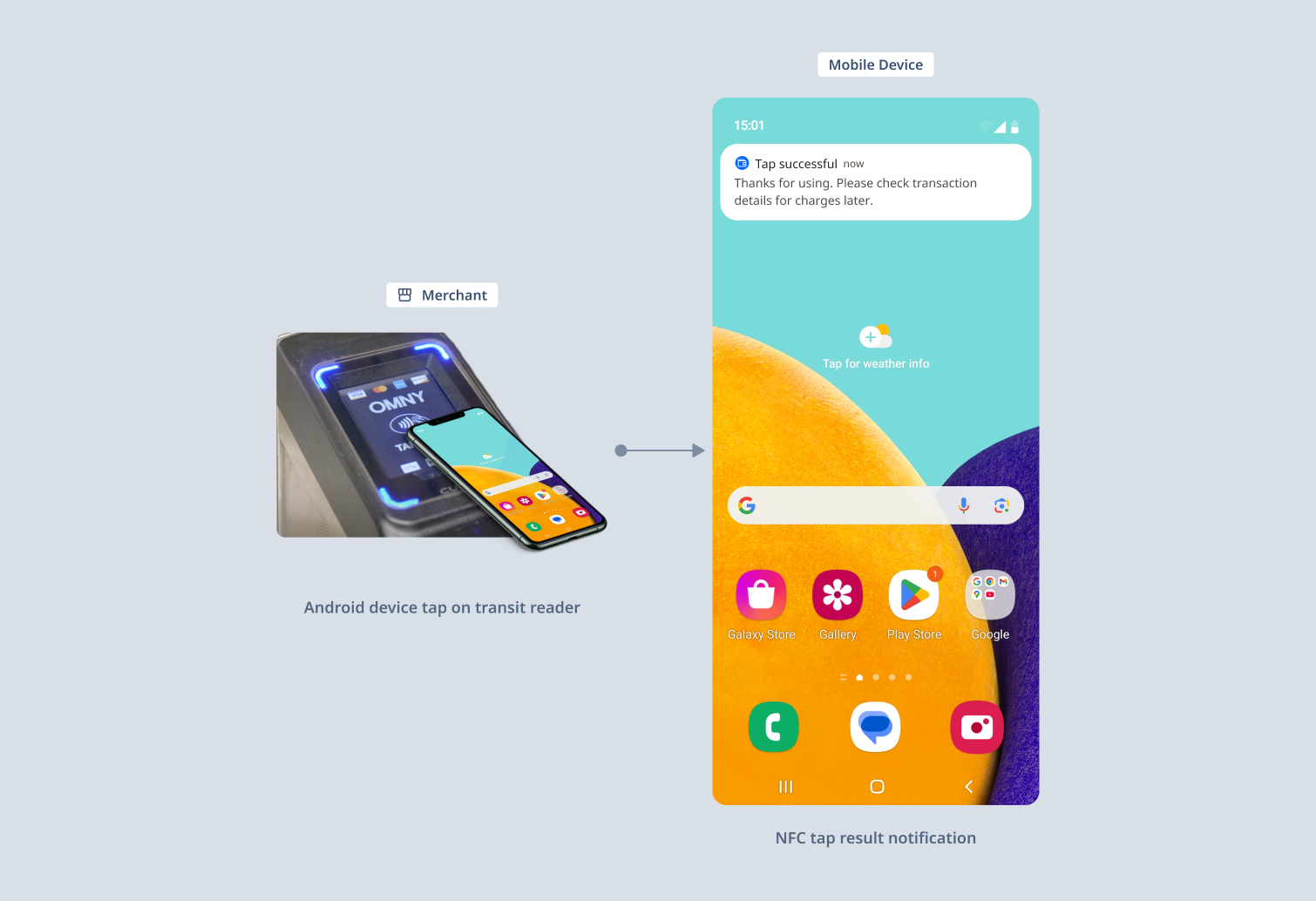
Figure 3. Transportation transaction user experience
Note: Due to time constraints in traffic situations, the user experience consists of making tap payments immediately after unlocking the phone.
The user experience of taking transportation consists of the following steps:
- The consumer unlocks their mobile device before tapping.
- The consumer holds their mobile phone near the transit card reader without opening the MPP app.
- The MPP presents the tapping result message to the consumer.
How it works
The following figures illustrate the workflow of Alipay+ NFC service activation and payment making.
Activate the service
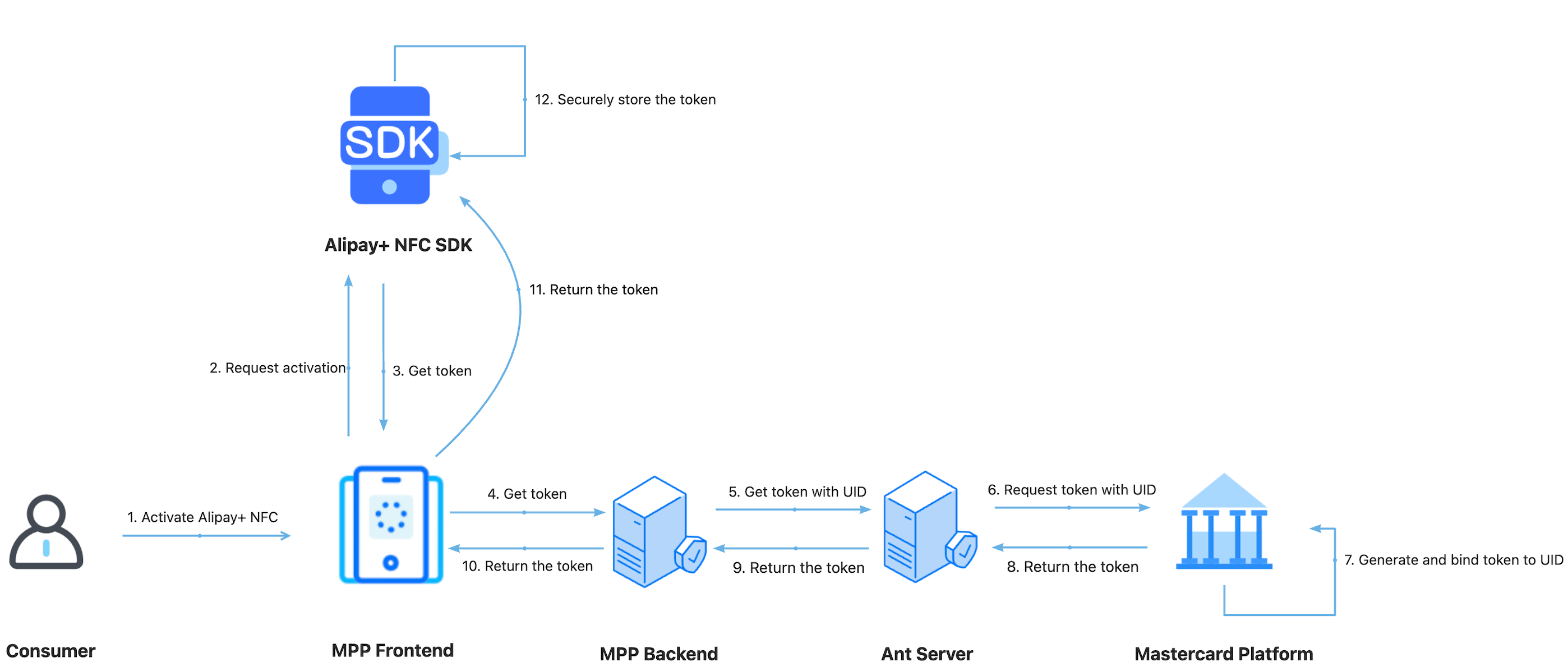
Figure 4. The Alipay+ NFC service activation workflow
The Alipay+ NFC activation workflow consists of the following steps:
- The consumer activates the Alipay+ NFC service in the MPP app.
- The MPP frontend sends the activation request to the Alipay+ NFC SDK.
- The SDK sends a get token request to the MPP app, which then forwards the request to the MPP backend.
- The MPP backend forwards the request to the Ant Server to get the token with UID.
- The Ant Server requests a token with UID from Mastercard.
- Mastercard generates the token and binds it to the UID, then returns the token to the SDK, which securely stores it.
Make a payment
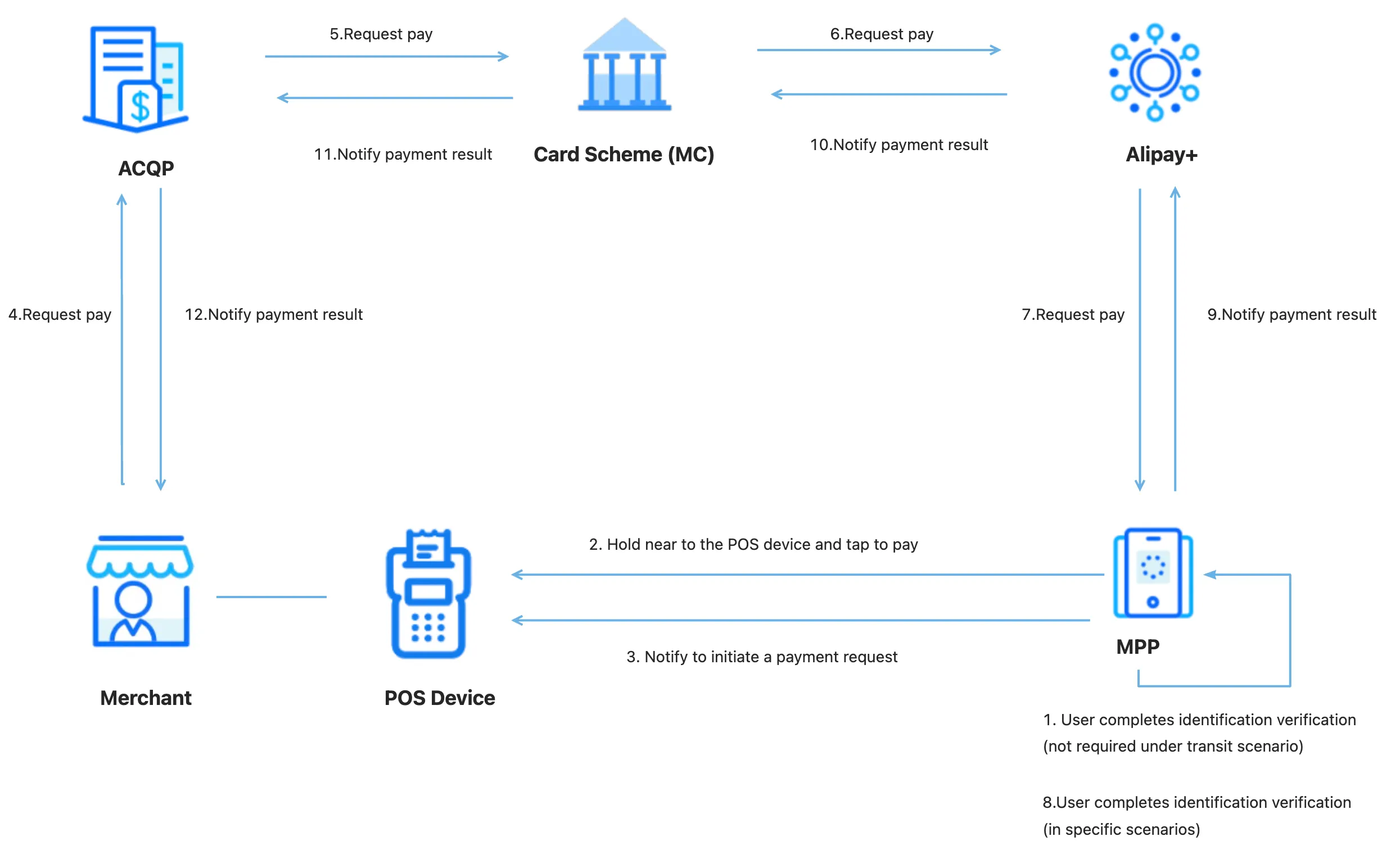
Figure 5. The payment-making workflow
The Alipay+ NFC payment workflow consists of the following steps:
- The consumer completes identification verification (not required under the transit scenario) before payment in the MPP app.
- The consumer holds their mobile device near the Mastercard merchant POS device to start a transaction.
- The MPP server notifies the POS device to initiate a payment request, which then identifies the token and sends a payment request to the ACQP through the merchant.
- The ACQP forwards the payment request to the MPP server for user ID verification if needed.
- Then, the MPP server processes the payment and returns the payment result to Alipay+.
- Alipay+ notifies the payment result to the merchant.
Product functionalities
The Alipay+ NFC payment solution provides several capabilities to facilitate your business.
- Alipay+ NFC activation: Consumers can activate the Alipay+ NFC service quickly without applying for a traditional bank card.
- NFC settings guidance: Alipay+ provides guidance to ensure consumers' NFC settings are completed, instructing them to activate NFC and configure default payment settings based on their phone models.
Page detail requirements
This section describes the design requirements for the main pages of Alipay+ NFC.
NFC position page (Android only)
The following figure illustrates how the NFC page guides consumers to hold their phones near the POS device.
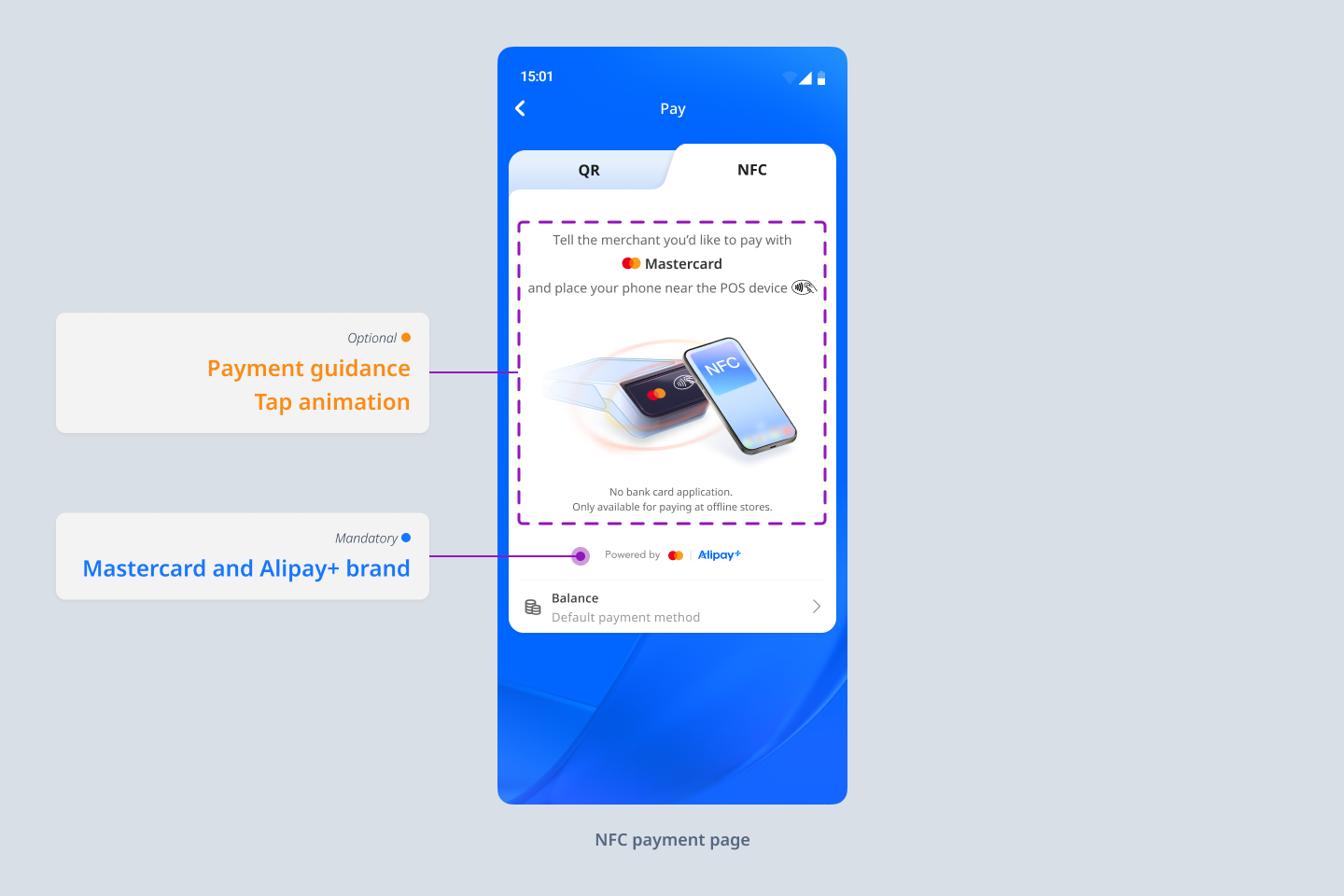
Figure 6. NFC position page
The following table lists additional information about the fields in Figure 6. If the field in the following table is available, the field must be provided on the NFC position page.
Field | Description |
Mastercard and Alipay+ brand | The image assets of Mastercard and Alipay+ brand. To obtain the Mastercard brand asset and the Alipay+ brand asset, see Alipay+ Brand Mark Assets and Mastercard brand center. |
Tap result page
The following figure illustrates the tap result status for Alipay+ NFC payment.
- The tap succeeds:
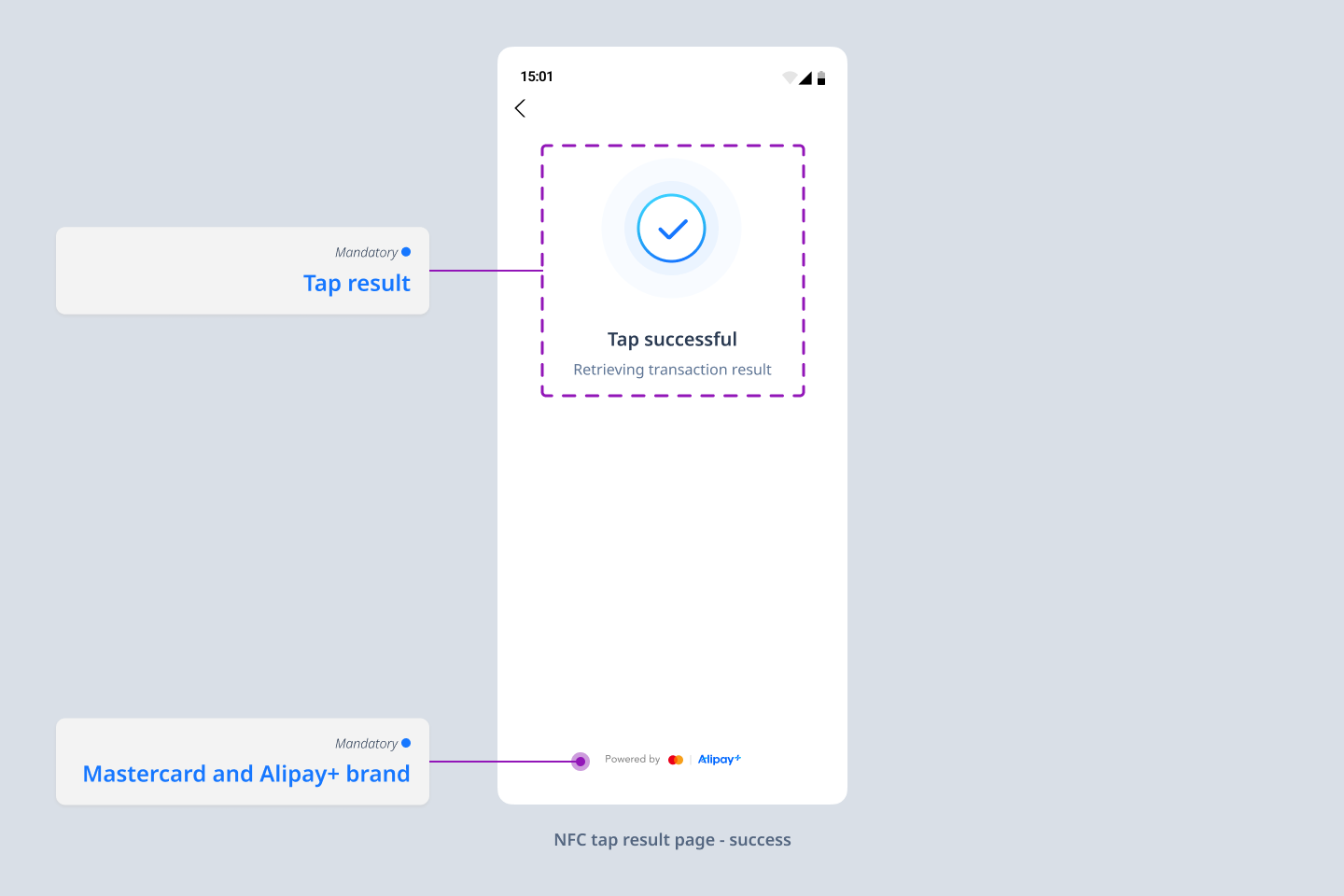
Figure 7. Tap result page - tap succeeds
The following table lists additional information about the fields in Figure 7. If the fields in the following table are available, the fields must be provided on the Tap Result Page.
Field | Description |
Tap result | The result of the tap. |
Mastercard and Alipay+ brand | The image assets of Mastercard and Alipay+ brand. To obtain the Mastercard brand asset and the Alipay+ brand asset, see Alipay+ Brand Mark Assets and Mastercard brand center. |
The following figures illustrate the tap result page for different scenarios.
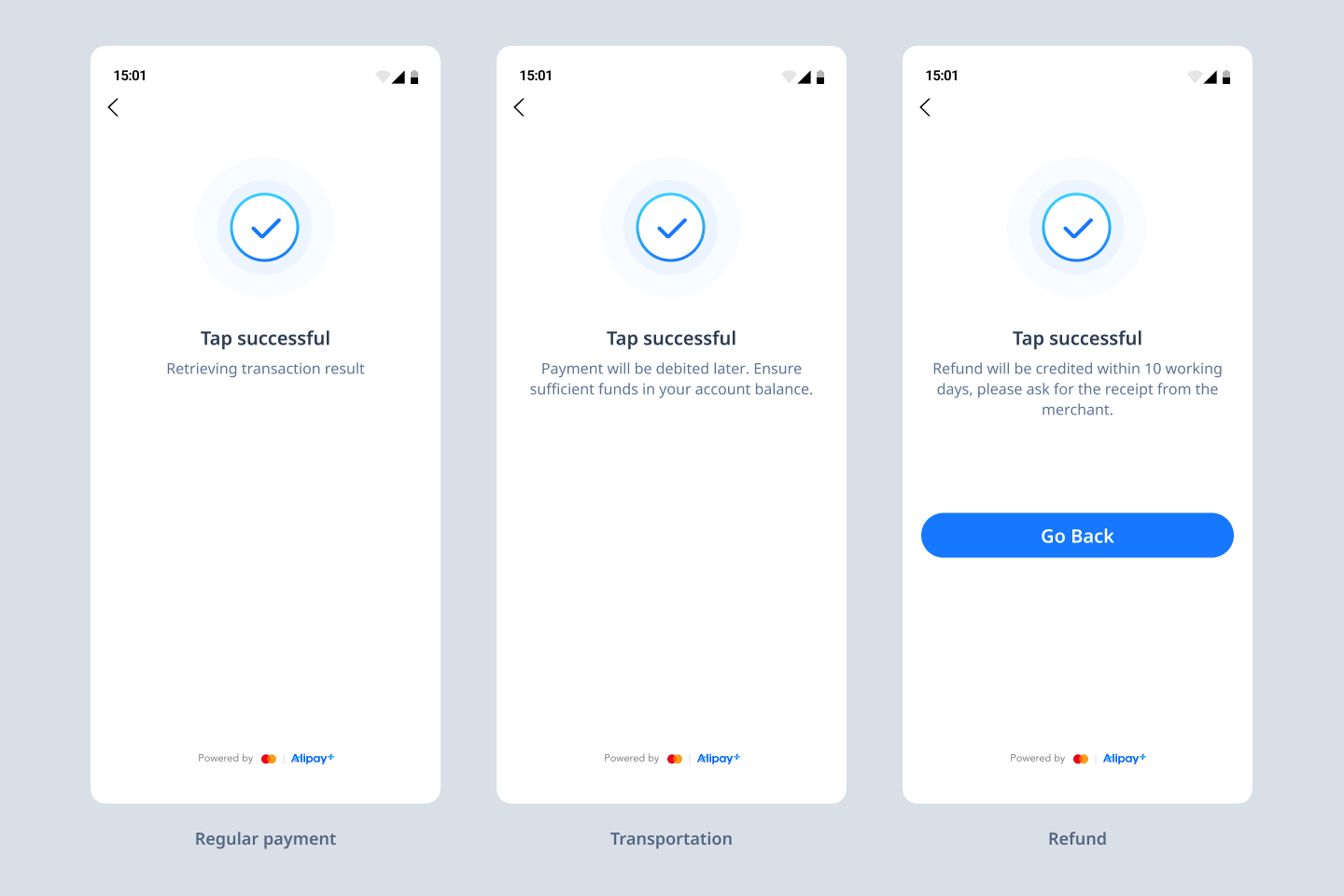
Figure 8. Tap result page for regular payment, transportation and refund - tap succeeds
Payment result page
The following figures illustrate the fields that can be displayed on the payment result page for Alipay+ NFC payment.
- The payment succeeds:
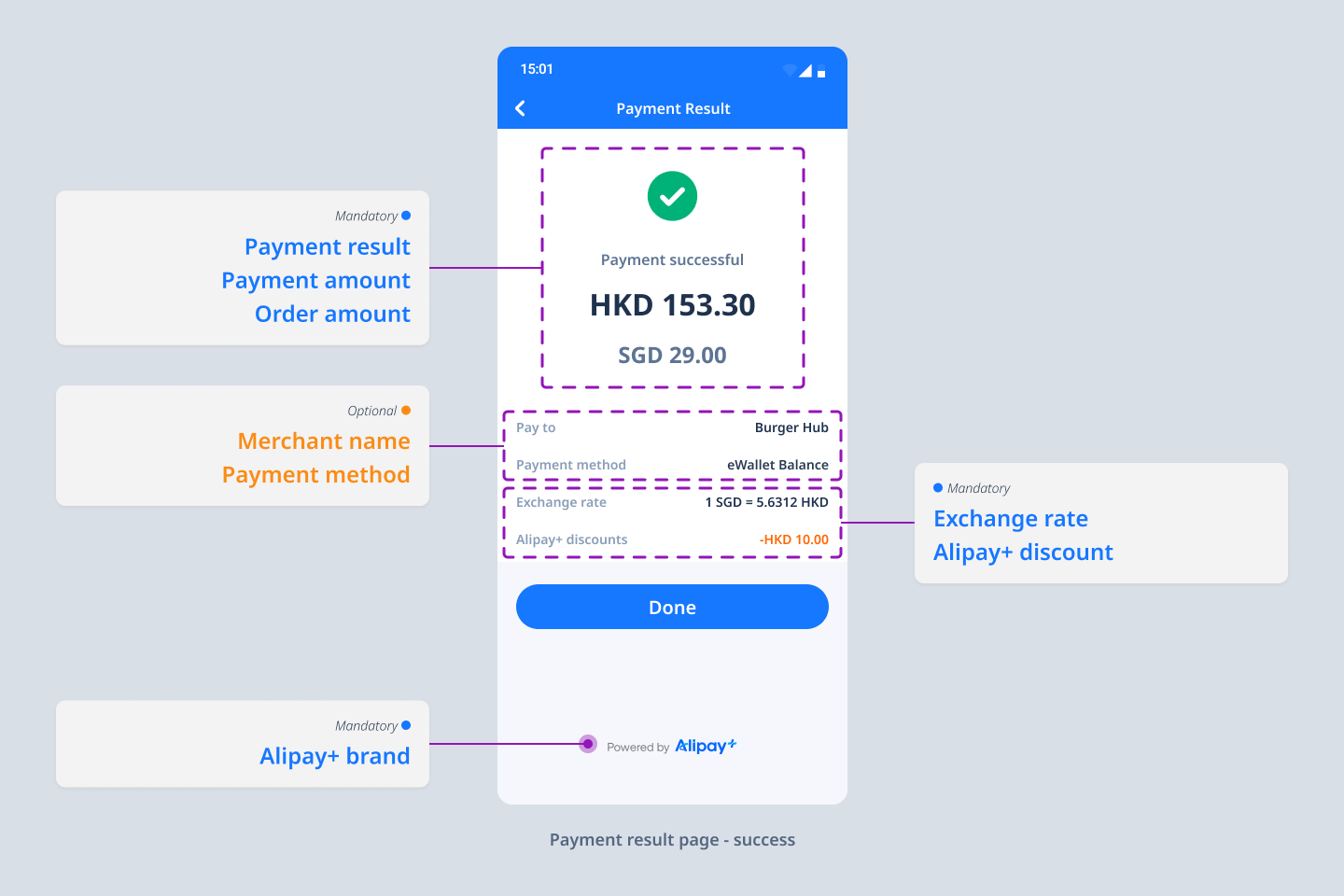
Figure 9. Fields for payment result page - payment succeeds
Note:
- The exchange rate may be less than 1.
- The order currency can be displayed either before or after the consumer's payment currency in the exchange rates.
- The payment fails:
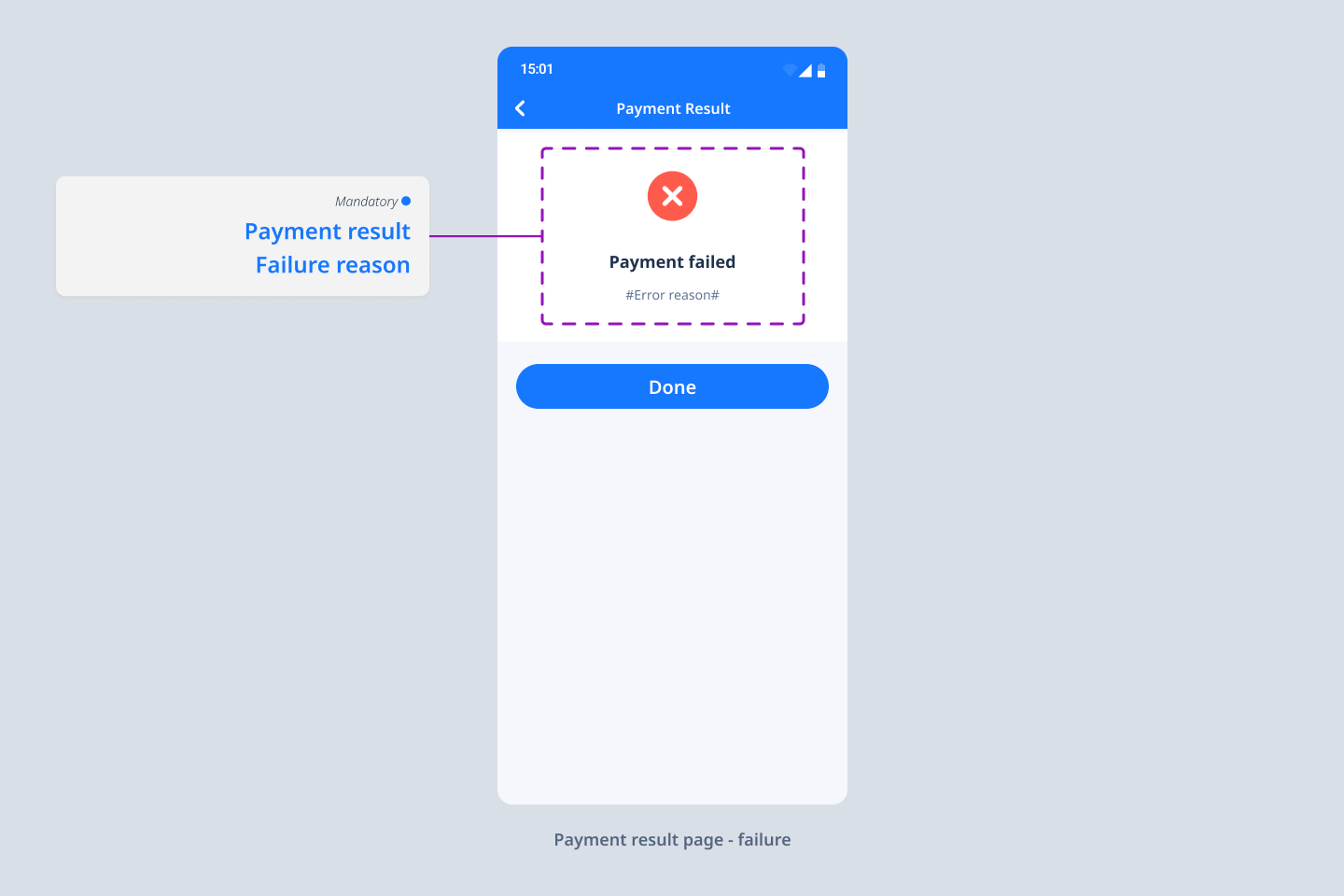
Figure 10. Fields for payment result page - payment fails
The following table provides additional information about the fields in Figures 9 and 10. If the fields in the following table are available, the fields must be provided on the Payment Result Page.
Note: Details on all fields (except the Alipay+ brand) in the table can be obtained from the corresponding APIs.
Field | Description |
Payment result | The payment result. |
Payment amount | The amount that the consumer pays. |
Order amount | The order amount. |
Exchange rate | The exchange rate that is used when the order currency differs from the consumer's payment currency. |
Alipay+ discount | The amount of the discount from Alipay+. |
Alipay+ brand | The image asset of Alipay+ brand. To obtain the asset, see Alipay+ Brand Mark Assets. |
Failure reason | The reason that a payment failed result is returned. |
Transaction detail page
The following figure illustrates the fields that can be displayed on the Transaction Detail Page for Alipay+ NFC payment.
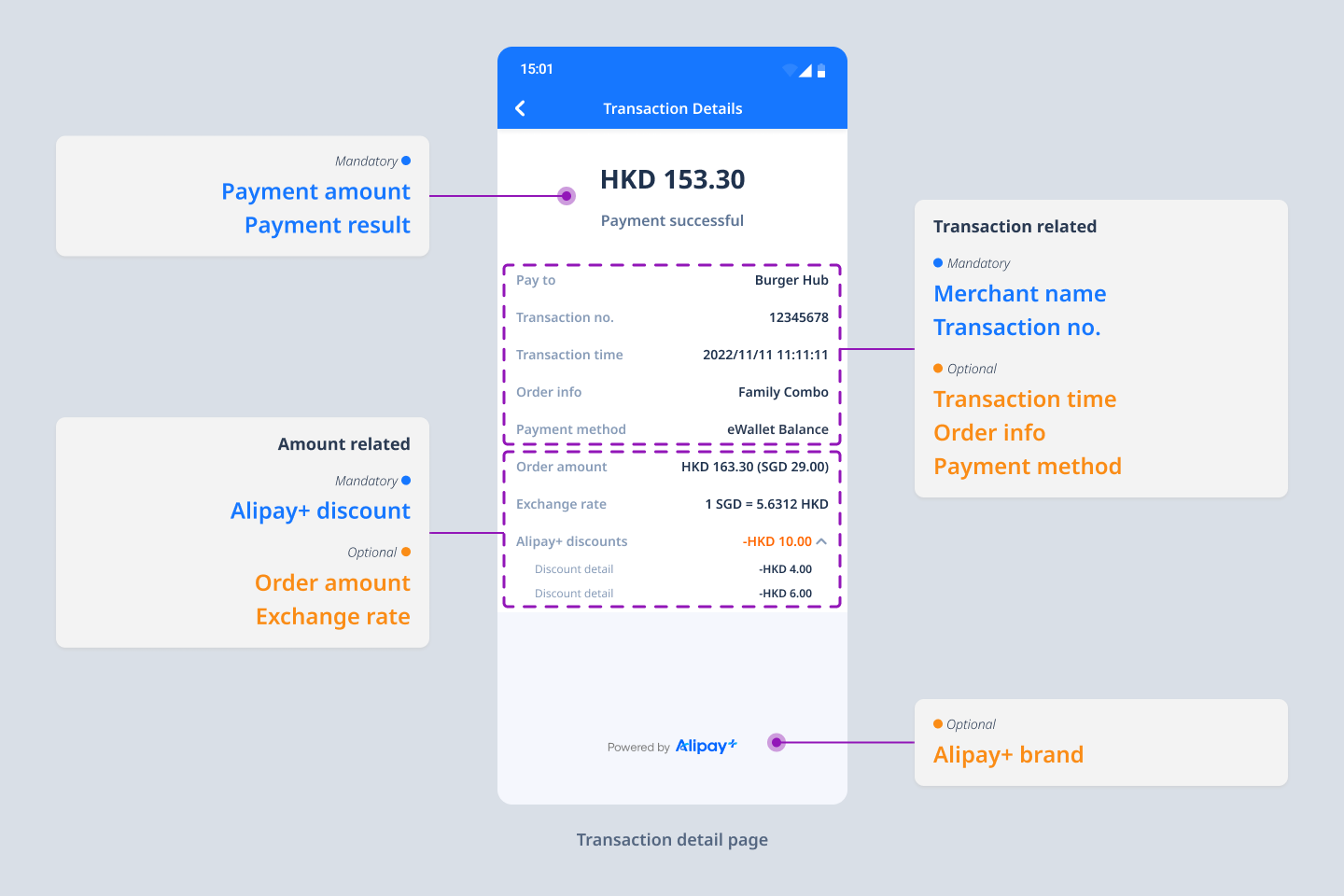
Figure 11. Fields for transaction detail page
Note:
- The exchange rate may be less than 1.
- The order currency can be displayed either before or after the consumer's payment currency in the exchange rates.
The following table provides additional information about the fields in Figure 11. If the fields in the following table are available, the fields must be provided on the Transaction Detail Page.
Note: Details on all fields (except the Alipay+ brand) in the table can be obtained from the corresponding APIs.
Field | Description |
Payment result | The payment result. |
Merchant name | The display name of the merchant, which needs to support multiple languages. |
Payment amount | The amount that the consumer pays. |
Transaction No. | The transaction ID assigned by the merchant. |
Alipay+ discount | The amount of the discount from Alipay+. |
Get started with the integration
If you intend to access this product, please submit your information first. We will get back to you soon.
For more information about how to integrate the Alipay+ NFC Payment functionalities, see Integration guide.