
Make a payment
In the Alipay+ NFC payment scenario, the user pays by tapping their mobile device against the POS machine. The Alipay+ NFC SDK manages the interaction with the POS machine and invokes the interface implementation from the MPP app.
Workflow
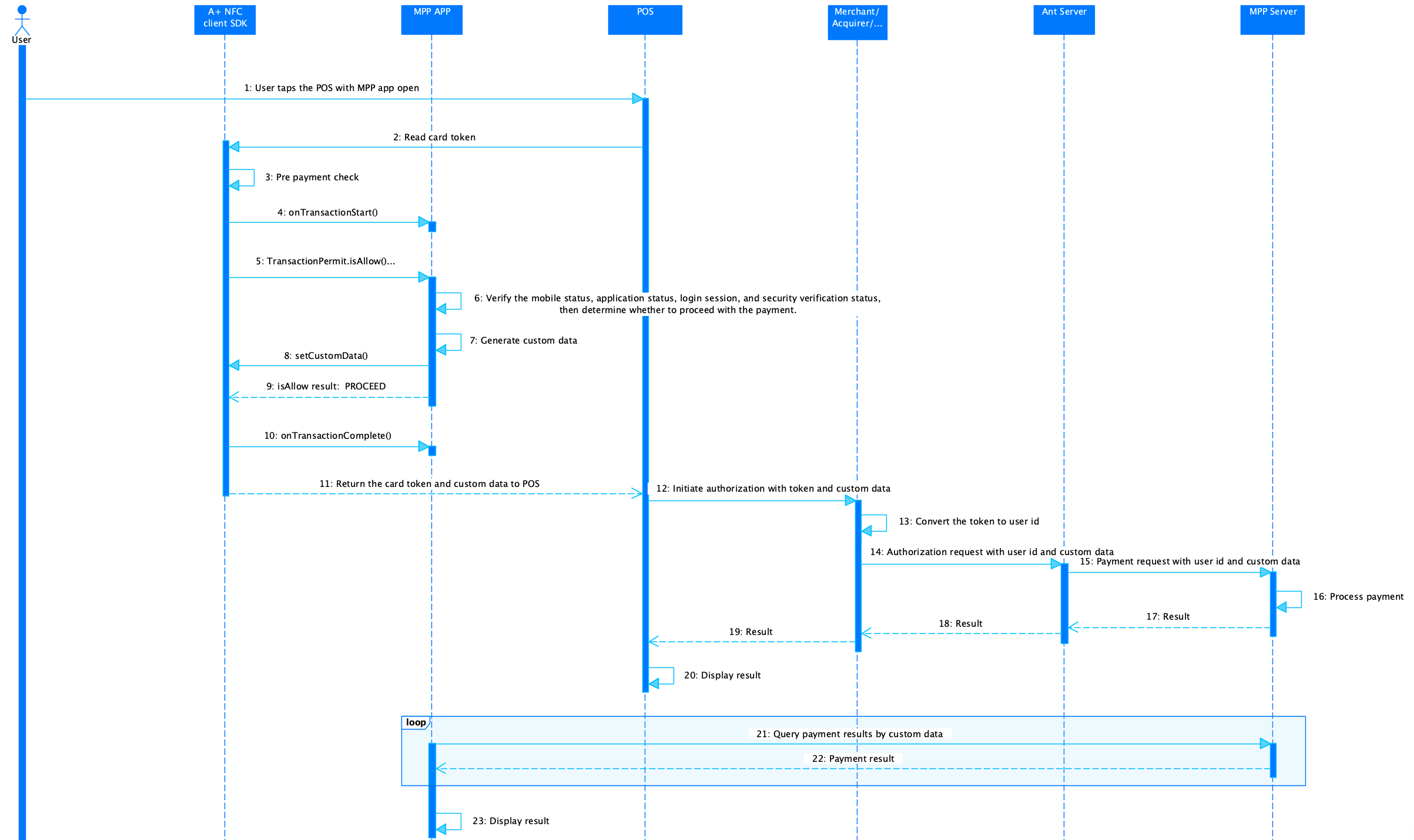
The payment process consists of the following steps:
- The user taps the POS terminal, and the SDK performs a pre-payment check. (Steps 1-3)
- The onTransactionStart() listener is triggered here, and the preset logics are executed. (Step 4)
- The SDK calls the TransactionPermit.isAllow() API to check the transaction status. The MPP App verifies the mobile status, application status, login session, and security verification status, and makes the final decision: (Steps 5-6)
PROCEED: Proceed with the payment.DECLINE: Decline the payment.
- The MPP app generates additional custom data, such as a transaction reference. This data is passed to the MPP server during the payment process using the setCustomData() API on the SDK. (Steps 7-8)
- If all checks are successful, the MPP app returns
PROCEEDas the result of calling the TransactionPermit.isAllow() API to the SDK. The onTransactionComplete() listener is triggered here, and the preset logics are executed. (Steps 9-10) - The SDK passes the card token and custom data to the POS terminal. (Step 11)
- The POS terminal initiates the authorization process using a card token and custom data, which are then submitted to the acquirer for processing. The acquirer converts the card token to a user ID and sends the authorization request with the user ID and custom data to the Ant server. (Steps 12-14)
- The Aut server calls the pay API with the user ID and custom data to the MPP server. (Step 15)
- The MPP server processes the payment and returns the result to the POS terminal, and the POS terminal displays the result. (Steps 16-20)
- The MPP app queries payment results by custom data from the MPP server until payment result is returned. (Steps 21-22)
- The MPP app displays the payment result. (Step 23)
Step 1: Pre-payment check and transaction listener activation
The preparation includes a pre-payment check and transaction listener activation.
The pre-payment check is based on the initial configuration of the SDK, which includes parameters such as support for transit payments and the enabling of lock screen payments.
The onTransactionStart() listener is triggered here, and the preset logics are executed.
For more information about how to set up the onTransactionStart() listener on an Android device, see the setTransactionListener API.
Step 2: Validate transaction permission
After the transaction starts, the SDK calls the TransactionPermit.isAllow() SPI to determine transaction status. Here, your app checks mobile status, application status, login session, and any pertinent security verifications.
Processing logic
When using the TransactionPermit.isAllow() SPI, take the following into consideration:
- Ensure the following parameters are configured properly:
- authBefore: This parameter shows whether identity verification is conducted before the transaction. This means whether the auth API is called within 30 seconds prior to the transaction. This parameter is required.
- transactionInfo: This parameter shows information about the transaction. This parameter is optional. For detailed information about the transaction, see TransactionInfo.
- riskControlInfo: This parameter shows information about risk control. This parameter is required. For detailed information about risk control, see RiskControlInfo.
- Handle the response properly:
- result: This parameter shows whether the transaction is permitted. The MPP should process the transaction according to the following results:
Item | Description |
PROCEED | Transaction permitted. |
DECLINE | Transaction rejected. |
For more information about how to use the TransactionPermit SPI on an Android device, see the TransactionPermit SPI.
Step 3: Process the payment
- Once the transaction gets a
PROCEEDverdict, your app generates custom data and sends the custom data to the SDK. Then the SDK hands over the card token along with custom data to the POS terminal for authorization. - The terminal works by passing these inputs to the acquirer which converts them to a user ID and forwards these alongside the authorization request to the Ant server.
- The Ant server calls the pay API with user ID and custom data to send a payment request to your server. Your server processes the payment request and returns the payment result to the POS terminal.
Processing logic
When receiving the pay API request, take the following into consideration:
- Handle the request parameters properly:
- paymentRequestId: The unique ID that is assigned by Alipay+ to identify a payment order. This field is an API idempotency field. The MPP must regard the requests with the same paymentRequestId as repeated and process them only once. The MPP is recommended to check the consistency of the following key request parameters: paymentAmount, payToAmount, surchargeInfo, paymentMethod, and paymentPromoInfo. If any values differ from the previous request, the MPP needs to return the
REPEAT_REQ_INCONSISTENTresult code. - paymentMethod.customerId: The unique ID that is assigned by the MPP to identify a user. Specify this parameter if paymentMethod.paymentMethodId and paymentMethod.paymentMethodMetaData.userLoginId are not specified.
- paymentMethod.customData: The data that is generated by the MPP app to pass to the MPP server. This data is used to query the payment result. If this parameter is generated, its length must be exactly 20 bytes.
- Return the response properly:
- result: the result of the business processing, including the result code, result status, and result message. Specify optional parameters based on the business processing result as follows:
- If the payment succeeds, set the value of result.resultStatus to
Sand specify the following optional parameters: paymentId, paymentTime, and customerId. - If the payment fails, set the value of result.resultStatus to
F. - If the payment result is unknown, set the value of result.resultStatus to
Uand the value of result.resultCode toUNKNOWN_EXCEPTION.
Sample
Request from Alipay+ to the MPP
{
  "order":{
    "referenceOrderId":"OrderID_0100000101",
    "orderDescription":"SHOES",
    "orderAmount":{
       "value":"100",
       "currency":"JPY"
    },
       "merchant":{
          "referenceMerchantId":"M00000000001",
          "merchantMCC":"5411",
          "merchantName":"UGG",
          "merchantDisplayName":"UGG",
          "merchantAddress":{
             "region":"JP",
             "city":"xxx"
          },
          "store":{
             "referenceStoreId":"S0000000001",
             "storeName":"UGG-2",
             "storeMCC":"5411",
             "storeTerminalId":"69014001"
          }
       },
    "env":{
      "deviceTokenId":"89D64DD5D06B0CBA901DEF4321290ADEF7900B2016E8429AC43BE97BDDD0765D"
    }
 },
 "acquirerId": "1020000000000000001",
 "pspId":"1020000000000000001",
 "paymentRequestId":"2010000000000000000000000007771",
 "paymentExpiryTime": "2020-01-01T12:01:01+08:30",
 "paymentAmount":{
    "value":"100",
    "currency":"JPY"
 },
 "paymentMethod":{
    "paymentMethodType": "CONNECT_WALLET",
    "customerId":"2160000000000001",
    "customData":"0000008c21c727f2be19"
  },
 "payToAmount":{
    "value":"1000",
    "currency":"KRW"
 },
 "paymentQuote":{
    "quoteId":"1234567",
    "quoteCurrencyPair":"JPY/KRW",
    "quotePrice":"10.0000"
  },
 "paymentFactor": {
     "authorizationType": "FINAL_AUTHORIZATION",
     "inStorePaymentScenario": "NfcPayment",
     "isSupplementalPayment": "false",
     "isInStorePayment": "true",
     "isTransitDebtRecovery": "false",
     "isDomestic":"false"
 },
 "paymentNetworkAdditionalInfo": {
     "orderSource": "TERMINAL",
     "paymentNetworkLifecycleId": "7dbbf678-a720-488a-9040-cbe728a846f4",
     "paymentNetworkOrderId": "9142e53b-f1f5-484a-a786-9a3a9472ce40",
     "paymentNetworkType": "MASTER_CARD"
 }
}
Response from the MPP to Alipay+
{
  "result": {
    "resultCode": "SUCCESS",
    "resultStatus": "S",
    "resultMessage": "success"
  },
  "paymentId": "201000000000000000000000004444",
  "paymentTime": "2020-01-01T12:01:01+08:30",
  "customerId": "2160000000000001"
}
For more information about the pay API, see the pay API.
Step 4: Display the payment result
- The POS terminal displays the payment result.
- Your app queries the payment result using the custom data. After obtaining the payment result from your server, your app displays the result to the user.