
Online Auto Debit
Auto Debit occurs when a user purchases the merchandise on the merchant platform and the merchant deducts the funds from the user account by an access token. To use this payment product, the merchant must obtain the user authorization (the access token) in advance.
Basic concepts
Term (Abbreviation) | Definition |
Access token | Security credentials with login session that identifies user, user's group, user's permissions, and, in some cases, specific applications. Access Token can be used for payment. |
Acquiring Service Provider (ACQP) | An Acquiring Partner participating in Alipay+ Core or other acquirer cooperating with a member of Ant Group to enable payments. |
Alipay+ | Alipay+ solution is a collaborative effort along with all partners to provide more open, digitalized, and inclusive financial services to worldwide consumers and merchants. |
Auto Debit | An Online Payment product provided by Alipay+, whereby a User enters into an Auto Debit agreement to bind a User Account with a Merchant’s service and enjoy automatic payment for subsequent Transactions. |
Merchant | A person that enters into a Transaction with a User which is acquired by an ACQP or an Indirect ACQP, as applicable. |
Mobile Payment Provider (MPP) | A Mobile Payment Partner participating in Alipay+ Core or other user- or issuer-facing payment service provider cooperating with a member of Ant Group to enable payments. |
User experience
By using Alipay+ Auto Debit, user's account binding experience is described as below. In addition, no matter which case is adopted, the merchant name and user authorization details must be displayed on the authorization page.
Start from the merchant mobile app or WAP page
When the user selects a wallet for Auto Debit on a merchant app/WAP page, the account binding experience is illustrated as below:
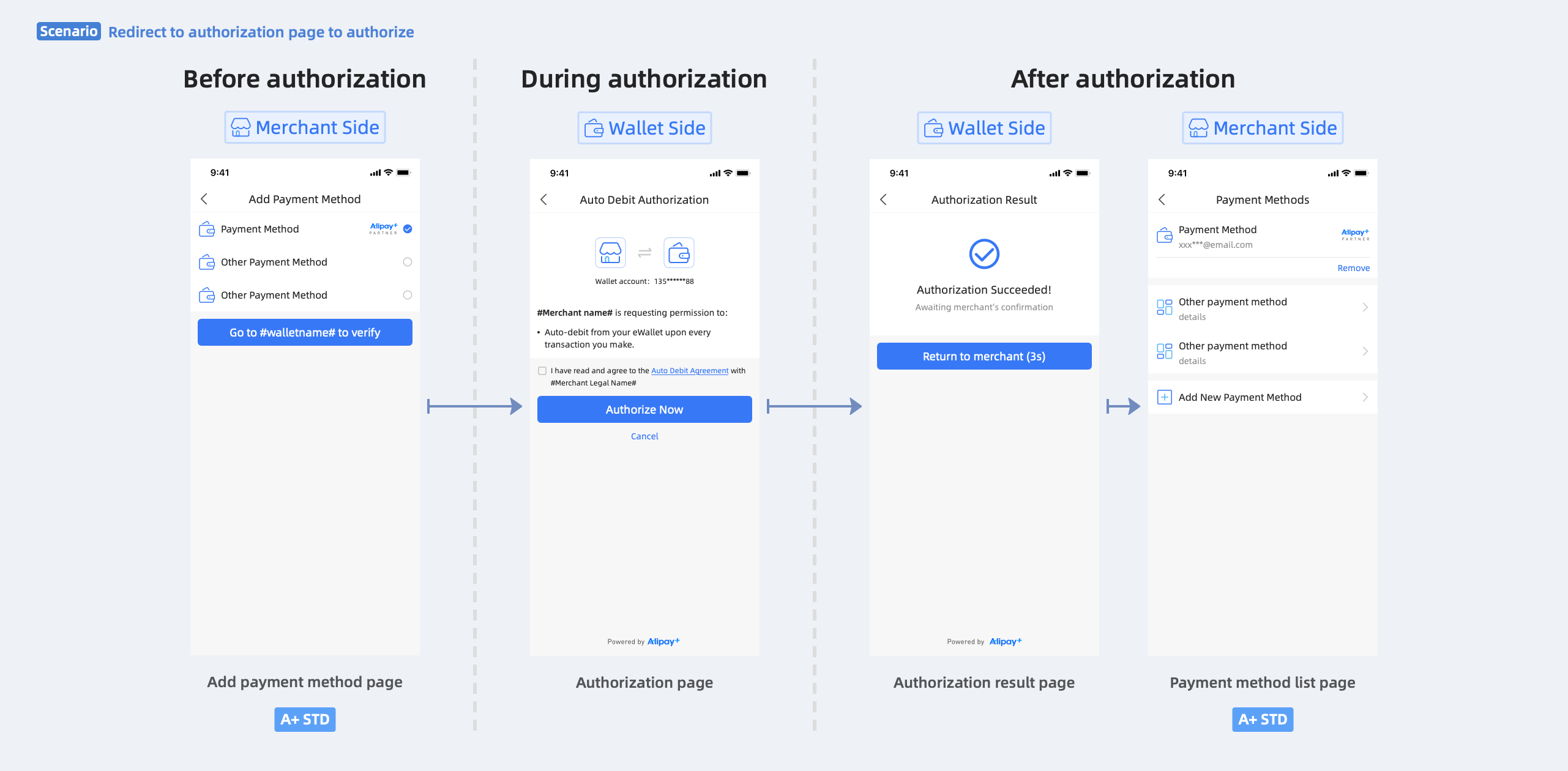
Figure 1. Account binding procedures in the wallet app/WAP page
In the merchant app/WAP page, the user performs the following steps to complete Auto Debit authorization:
- The user selects a digital wallet for Auto Debit on the Add payment method page.
- The merchant redirects the user to the wallet to sign the authorization agreement.
- The wallet presents the authorization result page to the user.
- The user is redirected back to the merchant page, where the bound wallet account is displayed.
Start from the merchant website
When the user selects a wallet for Auto Debit on the merchant website, the user can either scan a QR code or log in to the wallet to complete the account binding.
Scan QR code to authorize
When the wallet supports code scanning, the user can scan a QR code to complete the account binding. The user experience is illustrated as below:
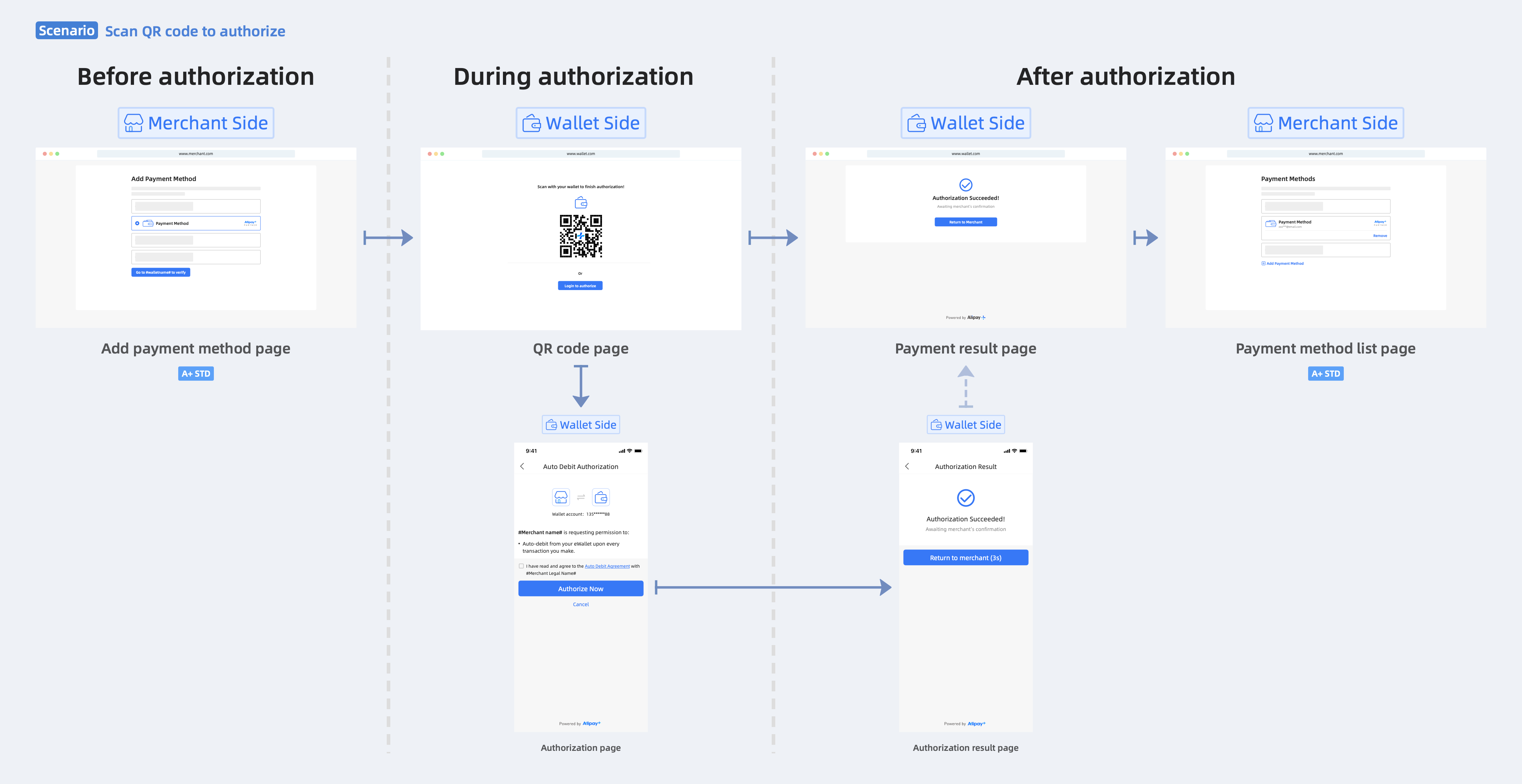
Figure 2. Account binding procedures by scanning QR code
Log in to the wallet to authorize
When the wallet does not support code scanning, the user can log in to the wallet to complete the account binding. The user experience is illustrated as below:
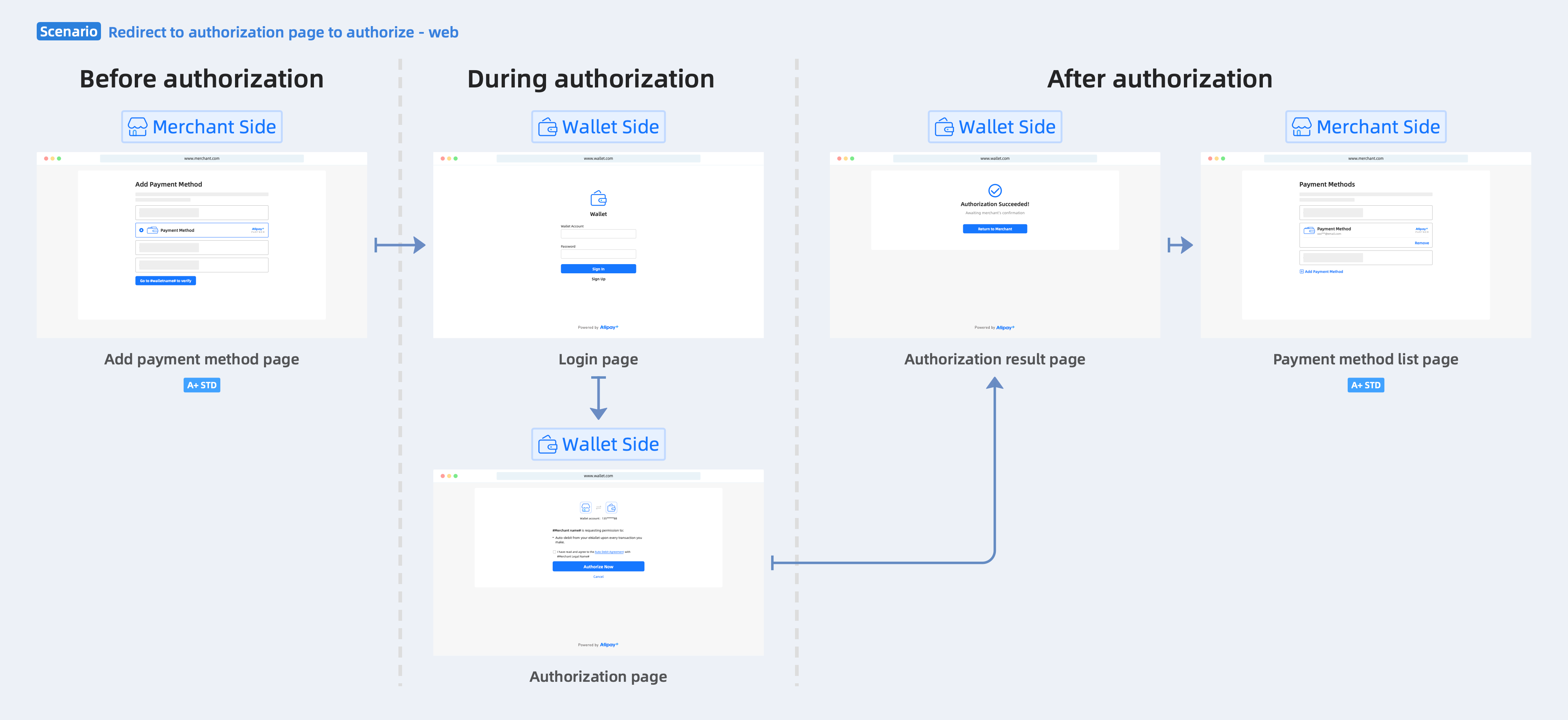
Figure 3. Account binding procedures by logging in to wallet
As illustrated in Figure 2 and Figure 3, the user can use the wallet to complete account binding by the following steps:
- The user selects a digital wallet for Auto Debit on the merchant website.
- The merchant redirects the user to sign the agreement on the Authorization page in the wallet.
- The wallet presents the Authorization result page to the user.
- The user is redirected back to the merchant page, where the bound wallet account is displayed.
Note: If the terminal type of the wallet is Web, the user can only be redirected back to the merchant's Web page. For more information about the redirection capabilities that are supported in Auto Debit, see Guide on redirections between the merchant and Mobile Payment Partner.
How it works
The following figure illustrates the account binding and payment flow:
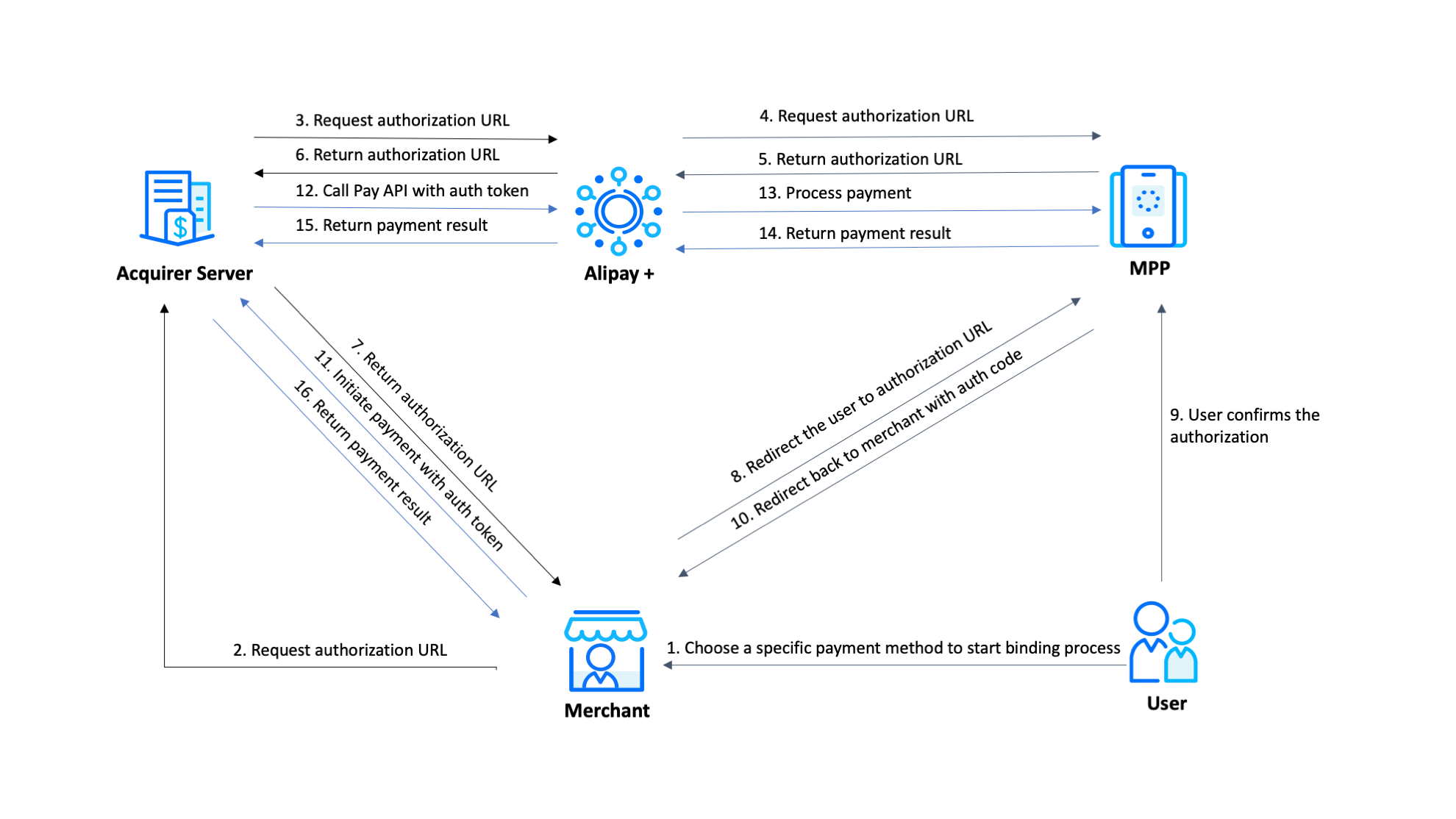
Figure 4. Account binding and payment workflow
- The user chooses a payment method to start the account binding process. (Step 1)
- The merchant requests and obtains an authorization URL from the MPP through the Acquirer server and Alipay+. (Steps 2-7)
- The merchant redirects the user to the authorization URL. (Step 8)
- The user confirms the authorization. The MPP then redirects the user back to the merchant with an authorization code. (Steps 9-10)
- The merchant initiates a payment to the Acquirer server with the auth token. (Step 11)
- The Acquirer server calls the pay API with the auth token to Alipay+, and Alipay+ requests the MPP to process the payment. (Steps 11-13)
- The MPP returns the payment result to the merchant through Alipay+ and the Acquirer server. (Steps 14-16)
Product functionalities and services
- Authorization for wallets: Consumers can authorize the merchant to deduct funds from the consumer's Alipay+ wallet by binding the wallet account to the merchant platform.
- Revocation of the authorization: Consumers can also revoke the authorization by unbinding their wallet account.
- Authorization/revocation result notification: When the wallet confirms that the binding/unbinding is successful, Alipay+ actively pushes the binding/unbinding result to the ACQP, who can then relay the result to the merchant accordingly.
- Easy redirection: Alipay+ provides a suitable redirection URL for the specific scenario. The merchant uses this URL to redirect the consumer to the wallet for completing the authorization.
Get Started
If you intend to access this product, please submit your information first. We will get back to you soon.
To start integrating Alipay+, see Get started with Alipay+ integration.
For more information about how to integrate the Auto Debit functionalities, see Integration guide for Auto Debit.