
Manual activation (Alipay+ NFC pages)
In the manual activation process, you can adopt the pages provided by the SDK. The following content shows how the manual activation process works.
Workflow
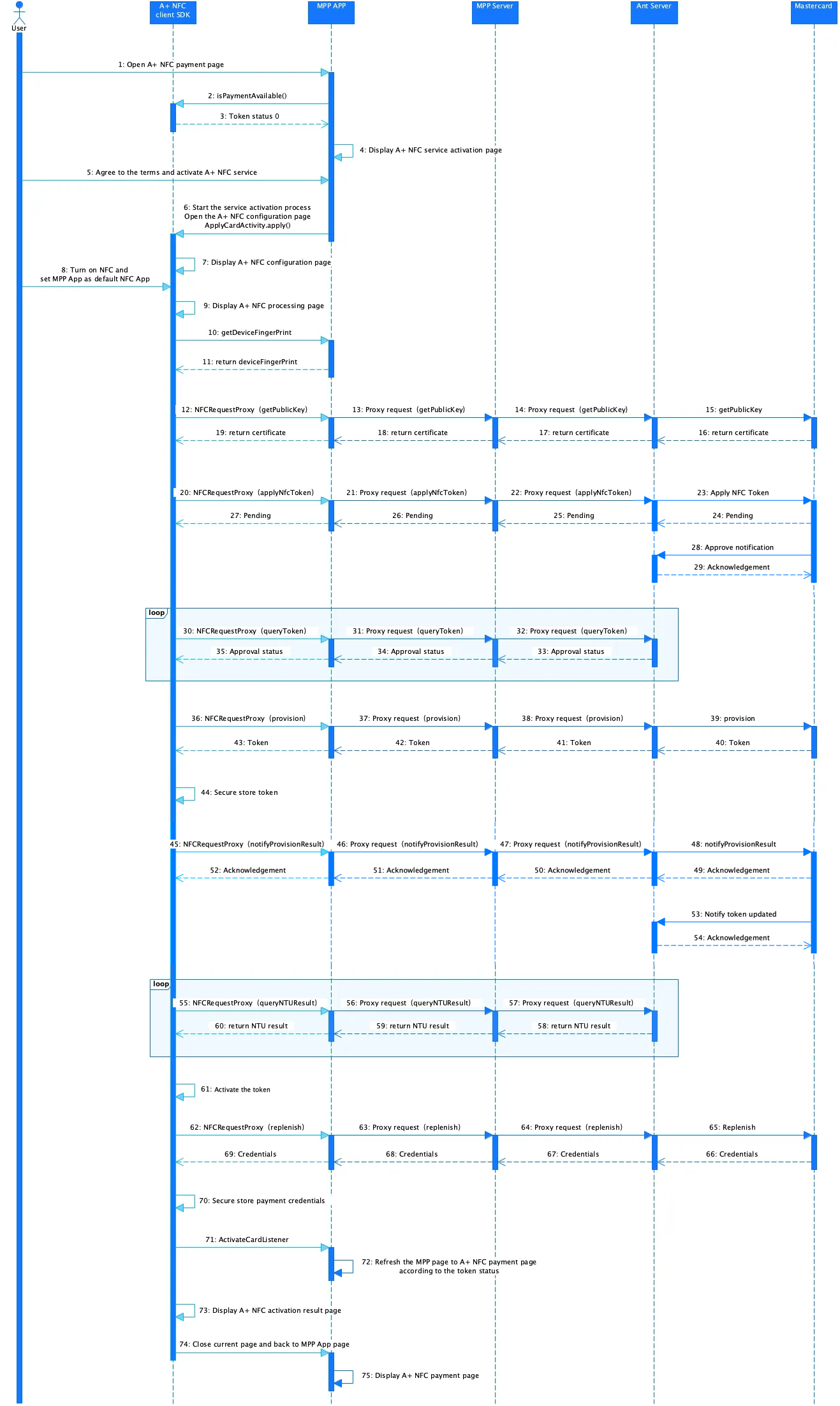
The manual activation of the Mastercard token consists of the following steps:
- The user opens the Alipay+ NFC payment page. Next, the MPP app calls the isPaymentAvailable() API to determine if the payment function is available. The SDK returns a value of
0, indicating that the card does not exist. (Steps 1-3) - The MPP app displays the Alipay+ NFC service activation page to the user, and the user agrees to the terms and then activates the NFC service. (Steps 4-5)
- The MPP app initiates the service activation process and opens the Alipay+ NFC configuration page by calling the ApplyCardActivity.apply() API. Subsequently, the SDK displays the Alipay+ NFC configuration page to the user. (Steps 6-7)
- The user turns on the NFC function and sets the MPP app as the default NFC app. Then the SDK app displays the Alipay+ NFC processing page. (Steps 8-9)
- The SDK calls the getDeviceFingerPrint() API to obtain device fingerprints from the MPP app. (Steps 10-11)
- The SDK obtains the public key from Mastercard and then applies for an NFC token from Mastercard. Then, the SDK starts to query the status of the NFC token application from the Ant server. The query will repeat until an approval status is returned. (Steps 12-35)
- The SDK obtains the NFC token from Mastercard and securely stores the NFC token locally. Then the SDK notifies Mastercard of the NFC token's obtaining result. Mastercard then returns an acknowledgment to the SDK via the proxy route to confirm that the notification has been received. After updating the NFC token's status, Mastercard notifies the Ant server of the token's status update. (Steps 36-54)
- After receiving the acknowledgment, the SDK queries whether Mastercard has completed updating the NFC token's status repeatedly from the Ant server. The SDK activates the token after receiving the Notify Token Updated (NTU) result. (Steps 55-61)
- The SDK obtains credentials from Mastercard and stores the credentials locally. (Steps 62-70)
- After the replenishment process, the SDK displays the Alipay+ NFC activation result page and then switches to the Alipay+ NFC payment page. (Steps 71-75)
Step 1: Start the activation process
- When the user navigates to your NFC page, call the isPaymentAvailable() API to check the card token status. If the result is
0, it indicates the card does not exist, and your app must display the Alipay+ NFC service activation page. - When the user agrees to activate the NFC service, call the ApplyCardActivity.apply() API.
- The user enables the NFC function and sets your app as the default NFC application.
- The next steps are processed by the SDK. You only need to proxy the requests from the SDK.
Processing logic
When calling the isPaymentAvailable() API, take the following into consideration:
- Handle the response parameter properly:
- result: The Token status code. For the code and corresponding token status, see Token status.
For more information about how to use the isPaymentAvailable() API on an Android device, see the isPaymentAvailable API.
When calling the ApplyCardActivity.apply() API, take the following into consideration:
- Configure the request parameters properly:
- activity: The context of the current service activation page.
- requestCode: The code that will be returned to
onActivityResult()to identify this card application request. - apduServiceName: The customized APDU service name during integration.
For more information about how to use the ApplyCardActivity.apply() API on an Android device, see the ApplyCardActivity.apply() API.
Step 2: Obtain and activate the token
2.1 Obtain the device fingerprints
After starting the activation process, the Alipay+ NFC SDK calls the DeviceFingerPrintService SPI to obtain the unique identifiers and characteristics of the device from your app.
Processing logic
The DeviceFingerPrintService SPI is used to enable the SDK to request device fingerprints from you.
Note: The returned fingerprint from you must use SHA-256 encryption. If this SPI is not implemented, or if the returned fingerprint is not in SHA-256 encryption, the SDK will return a
PARAMS_ERROR.
For more information about how to use the DeviceFingerPrintService SPI on an Android device, see the DeviceFingerPrintService SPI.
2.2 Obtain the public key
After gathering the device fingerprints, the Alipay+ NFC SDK sends a getPublicKeyrequest to you. Then you need to proxy this request to Mastercard to obtain the public key.
Note: All requests from the NFC SDK to Alipay+ and Mastercard are routed through the NFCRequestProxy SPI. For more information about how NFCRequestProxy works, see Proxy SDK requests.
Then Mastercard returns the certificate to the SDK.
2.3 Apply for and obtain an NFC token
- After the device fingerprints and the public key are ready, the Alipay+ NFC SDK sends an
applyNfcTokenrequest to you. Then, you need to proxy this request to the Ant server, and then the Ant server applies for an NFC token from Mastercard. - Mastercard will send a pending status back to the SDK and your app. When the NFC token is approved, a notification will be sent to the Ant server.
- Then the SDK sends a
queryTokenrequest to you. Then you need to proxy this request to the Ant server to query the token application result. If the Ant server receives the approval of the token application from Mastercard, it returns an approval status to you and the SDK. This query will be made repeatedly until the approval status is returned. - After the token application is successful, the Alipay+ NFC SDK sends a
provisionrequest to you. Then you need to proxy this request to the Ant server to officially assign the token. Then the Ant server requests a token from Mastercard and returns the token to you and the SDK. - When receiving the token returned from the Ant server, the SDK securely stores the token locally. Then the SDK sends a
notifyProvisionResultrequest to you. Then you need to proxy this request to notify the provision result to the Ant server and Mastercard. - Mastercard then updates the token's status on its server. Mastercard will notify the Ant server when the online token's status is updated.
- After notifying the Ant server, the SDK sends a
queryNTUResultrequest to check if the token status on the Mastercard server has been updated. This request will be made repeatedly until the NTU result is returned.
2.4 Activate the token
After receiving the NTU result, the Alipay+ NFC SDK activates the local token.
2.5 Replenish NFC payment credentials
The Alipay+ NFC SDK sends a request to the Ant server to replenish the NFC payment credentials. For more details, see Auto-replenish.
Step 3: Display the result
After the replenishment process, the ActivateCardListener is triggered. If the returned card token status is 2, your app refreshes the Alipay+ NFC service activation page to the Alipay+ NFC payment page. The SDK displays the Alipay+ NFC activation result page.
In the end, the SDK turns off the current page, and then your app displays the Alipay+ NFC payment page.
Token status
Code | Token status |
-2 | Disconnected. |
-1 | Query failed. |
0 | The card does not exist. |
1 | The card exists, but there are no credentials. Call the replenish API to replenish credentials. |
2 | Payment is allowed. |
3 | The card is locked. Call the unlock API to unlock. |
4 | The card is locked locally. Call the localUnlock API to unlock. |
11 | The card is in activation. |
21 | The card is activated successfully but requires secondary confirmation. |